
How to Change Block Blast Color (100% Working)
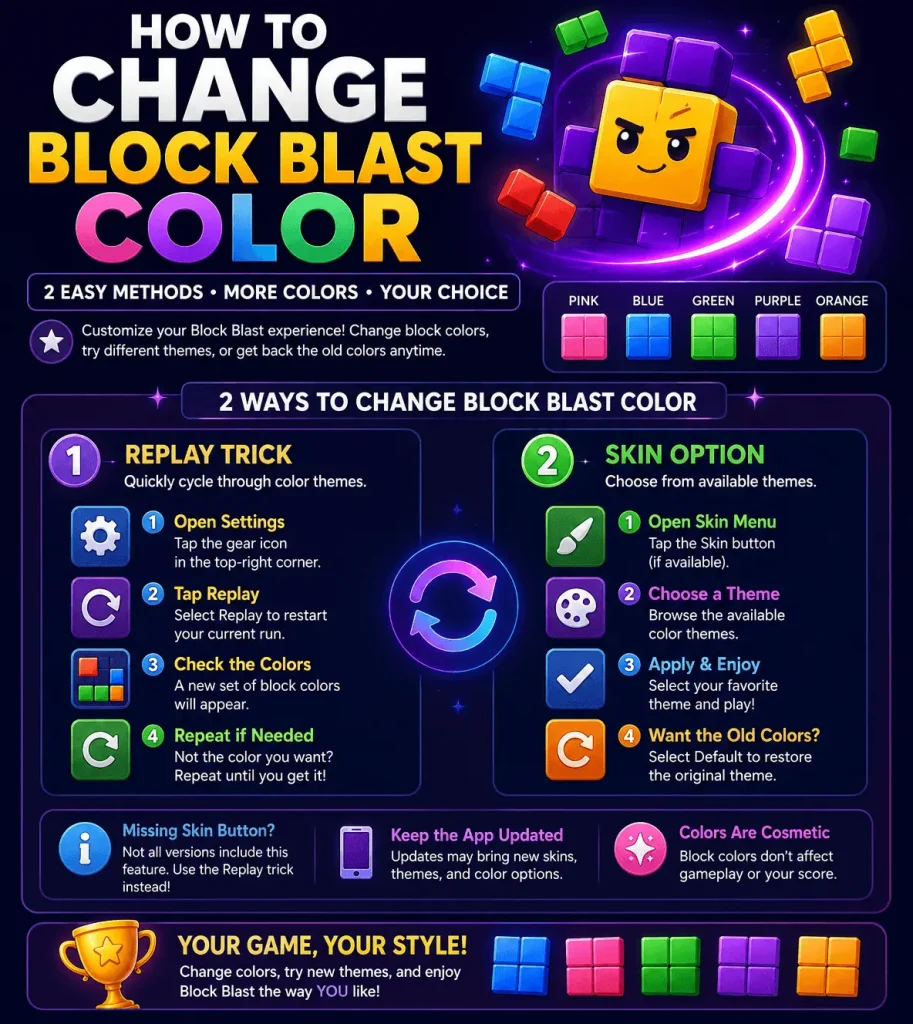
Are you wondering how to change Block Blast color but can’t find a clear answer? You’re not alone. Many players notice their blocks suddenly turn green, yellow, or other colors after an update, while others want to make Block Blast pink or try different color themes. Unfortunately, most guides online are either too vague, outdated, or simply tell you that the colors change automatically without explaining what you can actually do.
The good news is that changing Block Blast colors is possible in some versions of the game, and there are a few ways to customize or restore the default color theme depending on the features available on your device. In this guide, you’ll learn how to change Block Blast color step by step, why your game’s colors may have changed, how to get different color themes, and what to do if the Skin option is missing.
How to Change Block Blast Color?
If you’re looking for how to change Block Blast color, the easiest method is using the Replay option. Many players use this trick to cycle through different block colors until they get the theme they want, such as pink, blue, or green. If your game also includes a Skin button, you can try that method as well.
Change Block Blast Colors Using the Replay Trick
The Replay method is one of the quickest ways to change block colors without starting a completely new game.
Many players use this method to make Block Blast pink or switch to blue, green, and other color variations.
Want to solve difficult boards faster? Try our Block Blast Solver to find the best moves and clear challenging puzzles in seconds.
Change Colors Using the Skin Button
Some versions of Block Blast also include a Skin option. All you need to do is simply tap the Skin button, browse the available themes, and choose your preferred color style. If you ever want the original look back, open the same menu and select Default.Keep in mind that not every version of the game includes the Skin feature, so you may not see this option.
Check also: Block Blast Screenshot
What If the Skin Button Is Missing?
If you can’t find the Skin button, don’t worry as many players have reported the same issue. First, try updating Block Blast to the latest version and restart the game. If the option still doesn’t appear, your version may not support manual skins yet. In that case, use the Replay method instead to cycle through different block colors until you get the color theme you like.
Understanding Block Colors in Block Blast
Once you know how to change Block Blast color, it’s helpful to understand why the game uses different colors in the first place. The colorful blocks make the game more enjoyable to look at, but they don’t change how the puzzle works. Instead, they’re designed to keep the gameplay visually fresh while the core mechanics stay the same.
Try also: Block Blast Online
What Do Different Block Colors Mean?
Block Blast features several block colors, including blue, green, purple, orange, red, and sometimes pink. Depending on your game version, the colors may change after using the Replay option, applying a different skin, or installing a game update. Some players also notice new color themes during certain game sessions, although the available colors can vary.
Check also: How to Get Weird Blocks in Block Blast
Are Block Colors Cosmetic or Do They Affect Gameplay?h
No. The block colors are purely cosmetic, so they don’t affect your score, difficulty, or puzzle strategy. Whether you’re playing with green, pink, or blue blocks, the goal remains the same. You still need to place blocks carefully and clear rows or columns to earn points.
Check also: Block Blast Chromebook Version
Colored Blocks Game: Why Block Blast Uses Different Colors
Like many colored blocks games, Block Blast uses different color themes to keep the board looking fresh and engaging. As you continue playing, you may see different color palettes based on the game’s visual settings or theme changes. Even so, these colors are only for appearance and don’t provide any gameplay advantages.
Default Color Variations in Block Blast
After learning how to change Block Blast color, you may notice that the game can display different color themes over time. Depending on your game version, updates, or Replay results, you might see blue, green, purple, orange, red, or pink blocks. These colors only change the look of the game and don’t affect how you play.
Blue Blocks
Blue is one of the most common block colors in Block Blast. If you restart a game or use the Replay trick, you may see the board switch back to a blue-themed color palette.
Green Blocks
Green blocks are another common variation. Some players have reported their entire board suddenly turning mint green after an update or during a new game session.
Purple Blocks
Purple gives the game a fresh new look while keeping the gameplay exactly the same. It’s simply another color variation that some players encounter as the game changes themes.
Orange and Red Blocks
Orange and red blocks add a brighter appearance to the board. Just like the other color themes, they’re purely visual and don’t provide any gameplay advantages.
Pink Block
Pink is one of the most popular color themes players try to get. If you’re wondering how to change Block Blast color to pink, use the Replay method or check whether your version includes a Skin option.
Why Has My Block Blast Changed Color?
If you’re searching for how to change Block Blast color because your game suddenly looks different, you’re definitely not alone. Many players have reported their blocks changing to mint green, yellow, or other colors without changing any settings. In most cases, it’s related to the game’s visual themes rather than the gameplay itself.
Automatic Color Changes
Sometimes, Block Blast changes its color theme automatically. You might notice different block colors after replaying a game or starting a new session. Since the color themes rotate, you may see blue, green, purple, pink, or other variations without doing anything manually.
After a Game Update
A game update can also introduce a new color palette. Some players have reported opening Block Blast after an update only to find that the entire board had changed colors. If you want the old look back, try switching to the default skin or using the Replay method to cycle through different themes.
Check also: Block Blast Hacks
Theme or Skin Changes
If your version includes the Skin option, it’s easy to switch between available themes. Likewise, if you accidentally selected a different skin, simply open the Skin menu and choose Default to restore the original colors.
Visual Bugs and Glitches
Occasionally, the color change may be a visual bug instead of a feature. For example, some players have seen a mint green screen or pale yellow blocks even though they didn’t change any settings. If that happens, restart the game, update it to the latest version, or switch back to the default theme if the option is available.
How Color Changes Occur in Block Blast
If you’re trying to figure out how to change Block Blast color, you may also wonder why the game changes colors on its own. While players have reported several reasons, not every behavior is officially confirmed and it can vary between game versions.
Level Progression
Some players believe the game introduces different color palettes as they reach higher scores or progress through more games. However, this behavior hasn’t been officially confirmed and may not happen for everyone.
Background Themes
According to some guides, Block Blast may match the block colors with different background themes to keep the game looking fresh. Even so, this isn’t a setting that every player will notice.
Check also: Is Block Blast Rigged?
Seasonal Events
Some players and online guides suggest that special events can introduce temporary color themes. However, there’s no official confirmation that seasonal themes are available in every version of Block Blast.
Limited-Time Themes
From time to time, players report seeing new color variations after updates or during certain periods. If you suddenly notice a different color theme, it could be part of a limited rollout or visual update rather than a permanent feature.
Read also: Does Block Blast Always End With a Solution?
How to Get Different Color Themes on Block Blast
If you’re looking for how to change Block Blast color, you may also want to try different color themes. Depending on your game version, you might have access to skins, theme options, or automatic color changes. However, not every player sees the same features.
Available Theme Options
Some versions of Block Blast let you switch between different color themes using the Skin menu. You may also notice the game changing between blue, green, purple, orange, or pink color palettes after using the Replay option or starting a new game.
Unlockable Themes
Some online guides suggest that additional themes can become available as you keep playing or reach certain milestones. However, this hasn’t been officially confirmed, so the available themes may vary depending on your version of the game.
Premium Themes (If Available)
A few sources mention premium theme packs for extra color options. However, there isn’t any official confirmation that premium themes are available in every version of Block Blast. If they exist, they’ll usually appear in the game’s customization or Skin section.
Why Some Players Don’t Have Theme Settings
If you can’t find a Skin or Theme option, don’t worry. Many players have reported the same thing. The feature may not be available in your version yet, or it could be rolling out gradually. In the meantime, you can still use the Replay method to cycle through different block colors.
How to Make Block Blast Pink?
If you’re searching for how to change Block Blast color to pink, you’re not the only one. Pink is one of the most popular color themes players want. Depending on your game version, you may be able to get it by using the Replay trick or the Skin feature if it’s available.
Does Block Blast Have a Pink Theme?
Yes, many players have reported seeing pink blocks while playing Block Blast. However, the pink theme isn’t guaranteed to appear in every version or every game session, so you may need to cycle through different color themes first.
Using the Skin Feature
If your version includes the Skin menu, open it and check whether a pink theme is available. If it is, simply select it to apply the new color style. Otherwise, try the Replay method to cycle through different block colors until pink appears.
Phone Accessibility Color Filters
Some players use their phone’s accessibility settings to make Block Blast look pink. Keep in mind that this doesn’t actually change the game’s theme. Instead, it changes the colors across your entire phone, including other apps.
Things to Know Before Changing Display Colors
Before changing your display settings, remember that the effect isn’t limited to Block Blast. It can also change how photos, videos, and other apps look. If you only want to change Block Blast colors, it’s better to use the Replay method or the Skin feature whenever those options are available.
Block Blast Customization Options
Block Blast offers a few ways to customize its appearance, although the available features can vary by version.
Skin Menu
If your game has a Skin menu, you can switch between available color themes or restore the default look with just a few taps.
Settings Menu
The Settings menu lets you access options like Replay, which many players use to cycle through different block colors.
Theme Selection
Some versions of Block Blast include multiple color themes, while others change colors automatically during gameplay or after updates.
Color Customization Limits
Some versions of Block Blast include multiple color themes, while others change colors automatically during gameplay or after updates.
Common Block Blast Color Problems and Fixes
Running into color issues? Here are the most common problems and the quickest fixes.
Green Blocks
If your blocks suddenly turn green, try using the Replay method or switch back to the Default skin if the option is available.
Yellow Blocks
Yellow blocks usually appear as part of a different color theme. Restarting the game or replaying your current run may change the colors.
Mint Green Screen
A mint green screen is a common issue reported by players. Updating the game or restoring the default theme may help fix it.
Colors Won’t Change
If the colors stay the same, use the Replay trick several times or check if your version supports the Skin feature.
Missing Skin Button
Don’t worry if you can’t find the Skin button. Some versions of Block Blast simply don’t include this feature yet.
Want the Old Colors Back
Open the Skin menu and select Default if it’s available. Otherwise, restart the game or update it to see if the original color theme returns.
Tips for a Better Block Blast Visual Experience
A few simple habits can help keep your Block Blast colors looking their best.
Keep the App Updated
Install the latest game updates to get bug fixes, visual improvements, and any new color customization features.
Restart After Theme Changes
After changing skins or using the Replay method, restart the game if the new colors don’t appear right away.
Check Display Settings
If the colors suddenly look unusual, check your phone’s display or accessibility settings to make sure a color filter isn’t enabled.
Report Visual Bugs
If you’re seeing color issues that won’t go away, report the bug through the game’s support options and keep your app updated for future fixes.
Check also: How to Score High in Block Blast
Frequently Asked Questions
Final Thoughts
Knowing how to change Block Blast color is easy once you know which methods actually work. Whether you use the Replay trick, switch themes with the Skin feature, or restore the default colors, the available options depend on your version of the game. If you don’t see certain customization settings yet, keep your app updated and check again after future releases.
Hopefully, this guide answered all your questions about Block Blast color themes, from getting pink blocks to fixing unexpected color changes. Now you can jump back into the game and enjoy the color style that suits you best.